Mastering Token Efficiency: A How-To Guide for Compressing Key-Value Caches with TurboQuant
Introduction
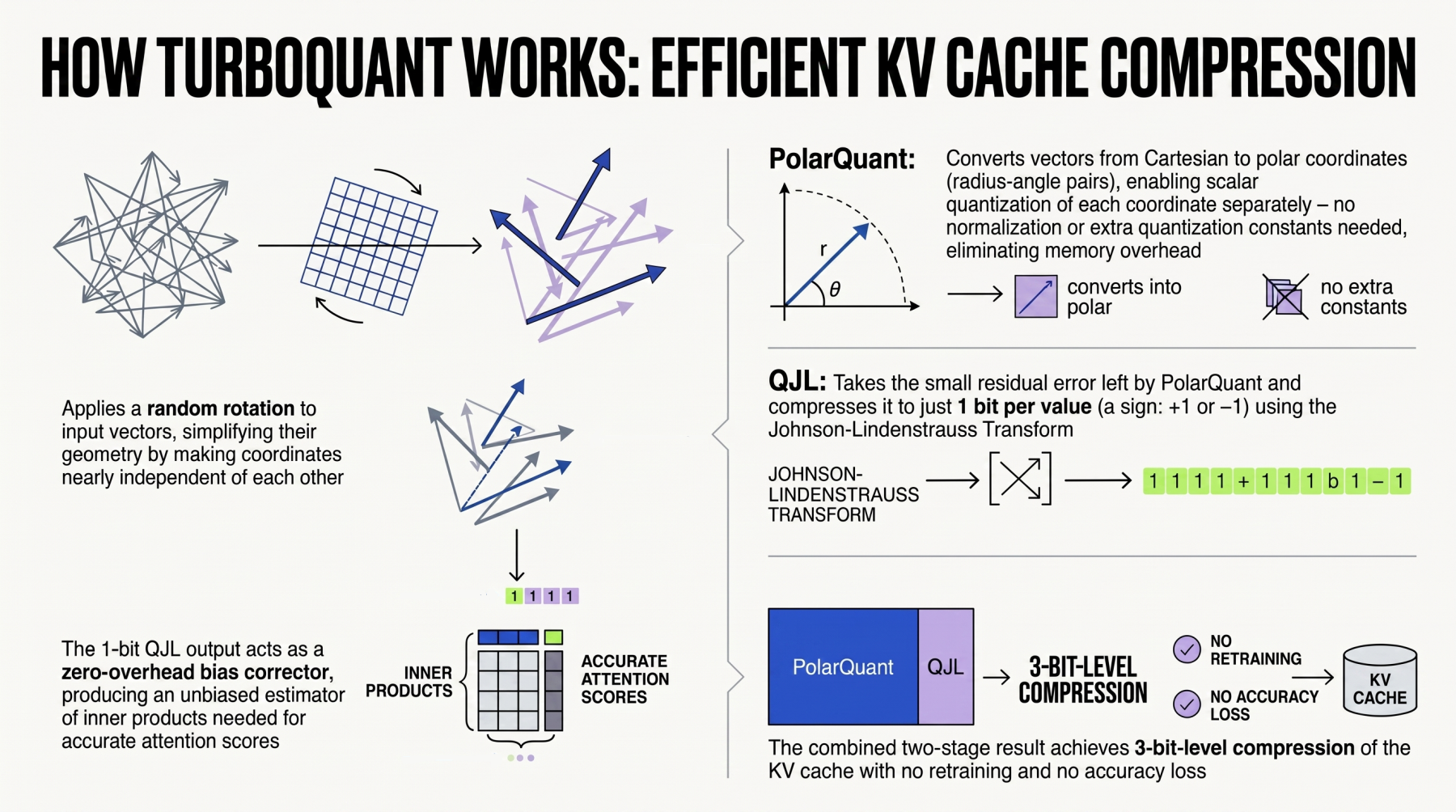
Large language models (LLMs) and retrieval-augmented generation (RAG) systems are powerful, but they come with a hidden cost: the memory footprint of key-value (KV) caches grows linearly with sequence length and batch size. TurboQuant, a library recently released by Google, offers a unified algorithmic suite for advanced quantization and compression tailored to LLMs and vector search engines. This guide walks you through the practical steps to compress KV caches using TurboQuant, reducing memory usage while maintaining model accuracy. Whether you're deploying a chatbot or scaling a RAG pipeline, these steps will help you achieve faster inference and lower infrastructure costs.
What You Need
- Python 3.8+ installed on your system.
- PyTorch 2.0 or newer (TurboQuant builds on PyTorch ops).
- Access to an LLM (e.g., LLaMA, Mistral, or Gemma) – either from Hugging Face or a local checkpoint.
- TurboQuant library – install via
pip install turboquant. - Hardware with a CUDA-compatible GPU (recommended for performance).
- Basic familiarity with transformer architecture and quantization concepts.
Step‑by‑Step Guide
Step 1: Set Up Your Environment and Install TurboQuant
Create a fresh Python virtual environment to avoid conflicts, then install the required packages. TurboQuant provides an intuitive Python API that integrates with existing PyTorch workflows.
python -m venv turboquant_env
source turboquant_env/bin/activate  # On Windows: turboquant_env\Scripts\activate
pip install torch torchvision torchaudio --index-url https://download.pytorch.org/whl/cu118
pip install turboquant transformers
Verify the installation by running python -c "import turboquant; print(turboquant.__version__)".
Step 2: Load Your LLM Model
For this guide, we'll use a Hugging Face model. The library works with any causal LM. Load the model and tokenizer, then move the model to your GPU (if available).
from transformers import AutoModelForCausalLM, AutoTokenizer

tokenizer = AutoTokenizer.from_pretrained("mistralai/Mistral-7B-v0.1")
model = AutoModelForCausalLM.from_pretrained("mistralai/Mistral-7B-v0.1", torch_dtype=torch.float16).cuda()
model.eval()
Tip: If you're short on GPU memory, load the model in 8-bit using load_in_8bit=True.
Step 3: Identify and Extract KV Cache Layers
TurboQuant optimizes the key and value projections inside each transformer block. Most architectures store these as self_attn.k_proj and self_attn.v_proj. Locate all attention layers in your model.
from turboquant import extract_kv_layers

kv_layers = extract_kv_layers(model)
print(f"Found {len(kv_layers)} KV projection layers.")
This function returns a list of tuples (layer_name, weight_matrix) that you will compress in the next step.
Step 4: Configure Compression Parameters
TurboQuant offers several quantization schemes: Q4, Q8, NV4 (non‑uniform), and PQ (product quantization). Choose based on your accuracy‑vs‑compression trade-off. For a first run, use the recommended NV4.
from turboquant import TurboQuantConfig

config = TurboQuantConfig(
    quant_scheme="NV4",       # Non‑uniform 4‑bit
    group_size=128,            # Parameters grouped per block
    use_symmetric=False,       # Asymmetric quantization preserves outliers better
    calibrate_on_sample=True  # Use a small calibration set
)
Note: For vector search components (e.g., embeddings), you can set target="vectordb" to optimize for dot‑product similarity.
Step 5: Run Calibration and Compression
TurboQuant requires a small calibration dataset to determine optimal scaling factors. Use a few hundred tokens from your target domain. Then call the compression method.
from turboquant import compress_kv

# Prepare calibration data (e.g., first 512 tokens of your training set)
calib_text = "The quick brown fox jumps over the lazy dog. " * 10
calib_tokens = tokenizer(calib_text, return_tensors="pt").input_ids.cuda()

compressed_layers = compress_kv(
    kv_layers,
    config=config,
    calibration_data=calib_tokens,
    model=model  # needed for forward hooks
)
After compression, TurboQuant automatically replaces the original weights in the model with quantized versions.
Step 6: Evaluate the Compressed Model
Run a quick inference test to verify output quality. Compare the logits from the original model and the compressed model using a small test prompt. The KL divergence should be low.
from turboquant import evaluate_compression

loss_original, loss_compressed = evaluate_compression(
    model,
    compressed_layers,
    test_prompt="Once upon a time in a land far away",
    tokenizer=tokenizer
)
print(f"Original loss: {loss_original:.4f}")
print(f"Compressed loss: {loss_compressed:.4f}")
If the loss increase exceeds 5%, try increasing the group_size or switching to Q8.
Step 7: Integrate with Vector Search (RAG Systems)
TurboQuant also provides a dedicated module for compressing embedding vectors used in retrieval. If you have a FAISS or ScaNN index, you can apply the same NV4 scheme to the stored vectors.
from turboquant import compress_vectors

embeddings = np.random.rand(10000, 768).astype(np.float32)  # example
compressed_embeddings = compress_vectors(
    embeddings,
    quant_scheme="NV4",
    group_size=64
)  # 4× memory reduction
Then rebuild your index with the compressed vectors. TurboQuant includes an optimized distance function for comparing quantized representations.
Tips for Best Results
- Calibrate with representative data. Use a few hundred to a thousand tokens from your actual application domain to avoid accuracy drops.
- Experiment with group sizes. Smaller groups (e.g., 64) preserve more detail but reduce compression. Start with 128 and tune.
- Monitor latency vs. memory. Quantized models often run slower on CPU but faster on GPU due to reduced memory bandwidth. Profile both.
- Use symmetric quantization for weight distributions centered around zero. Asymmetric is safer for attention projections that may have bias.
- For vector search, pre‑normalize embeddings. TurboQuant's PQ and NV4 work best on unit‑length vectors.
- Combine with weight quantization. You can apply TurboQuant to both KV caches and the model weights for extreme compression.
- Check TurboQuant's release notes – Google frequently updates the library with new schemes and hardware back‑ends.
Related Articles
- Navigating Shared Design Leadership: A Guide for Design Managers and Lead Designers
- 10 Essential Insights for Beginners in Django
- Google's TurboQuant: Revolutionizing KV Compression for LLMs
- 5 Essential Principles for Harmonious Design Leadership
- Design Strategist Alison Rand Urges Shift to 'Emotional Visibility' in Creative Leadership
- Hacker News May 2026 Job Hunt Thread Opens as Tech Hiring Heats Up
- Navigating the Spectrum Crunch: The Imperative of RF Coexistence Testing for Shared Spectrum
- How to Boost English Learner Literacy After Pandemic Setbacks: A School District’s Proven Approach