How to Remove Unwanted AI Files Chrome Downloaded Without Your Permission
Introduction
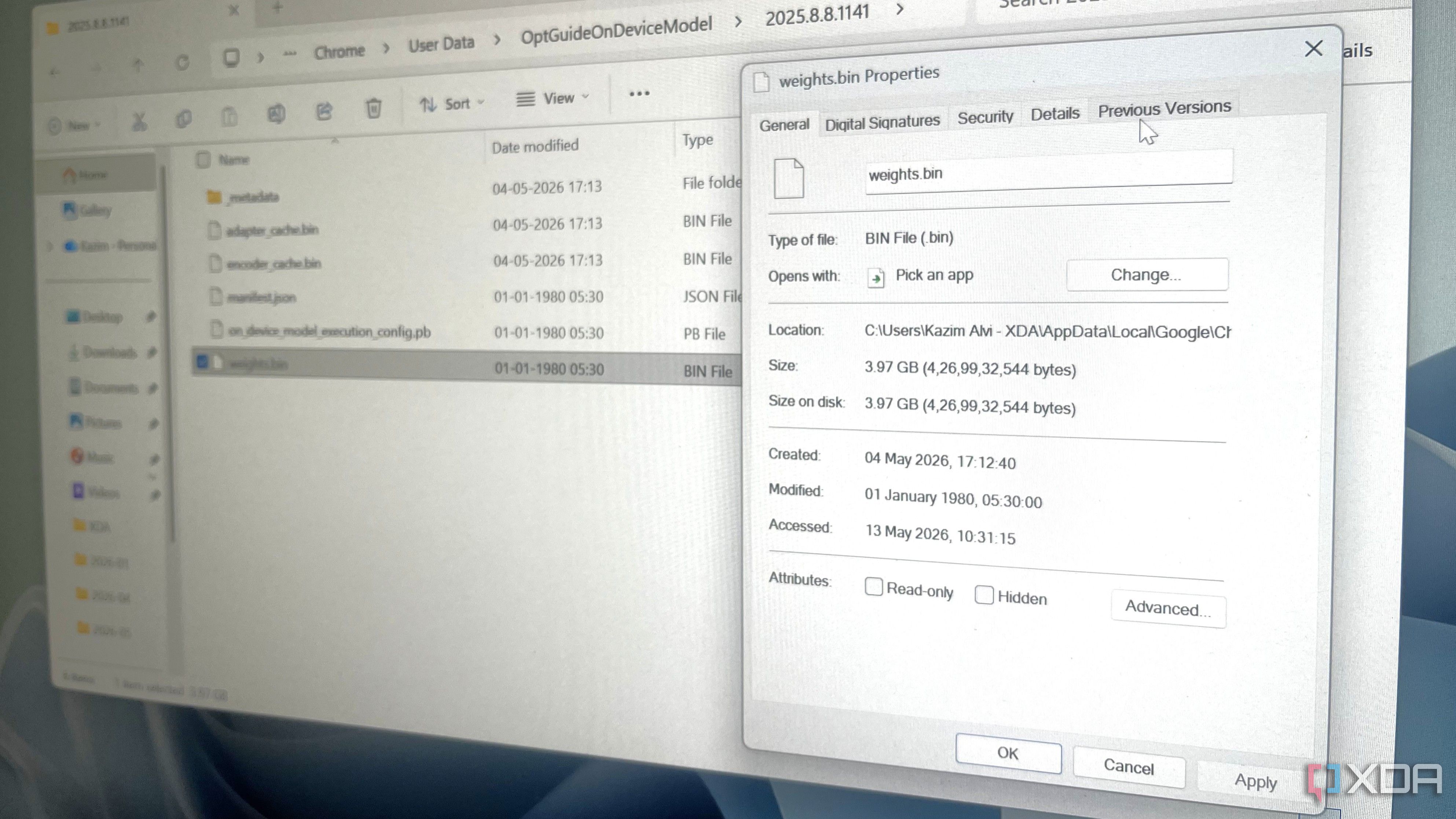
If you've noticed your computer's storage shrinking or Chrome slowing down for no obvious reason, you might be a victim of a silent data dump. Google Chrome has been quietly downloading massive AI-related files—up to 4GB—on both Windows and macOS systems. The worst part? You were never asked for permission, nor were you even notified. This guide will walk you through identifying and removing these hidden files, reclaiming your disk space and restoring your privacy. We'll cover the exact steps to delete the AI components, clear related caches, and prevent future automatic downloads. By the end, you'll have full control over what Chrome stores on your machine.
What You Need
- A computer running Windows 10/11 or macOS 12+
- Google Chrome installed (version 120 or higher)
- Administrator or local user account permissions (to delete system-level files)
- About 5–10 minutes of your time
- Optional: A file manager (File Explorer on Windows, Finder on macOS) to manually verify deletion
Step-by-Step Instructions
- Step 1: Check Chrome's AI-related components. Open Chrome and type
chrome://componentsin the address bar, then press Enter. Look for any entries named "Optimization Hints," "AI Model," or similar. These are the culprits storing gigabytes of data. If you see large file sizes listed (e.g., 4+ GB) next to any component, note the component name. - Step 2: Disable Chrome's AI features. To prevent Chrome from re-downloading the AI files, you must turn off its AI-powered features. Go to
chrome://settings/ai(on newer versions) or navigate via Settings > Advanced > AI. Toggle off options like "Help me write," "Tab organizer," or "Experimental AI features." Also, under Privacy and Security, disable "Allow Chrome to use AI to improve writing and suggestions." Restart Chrome after making these changes. - Step 3: Delete the downloaded AI files manually. On Windows: Close Chrome completely. Open File Explorer and navigate to
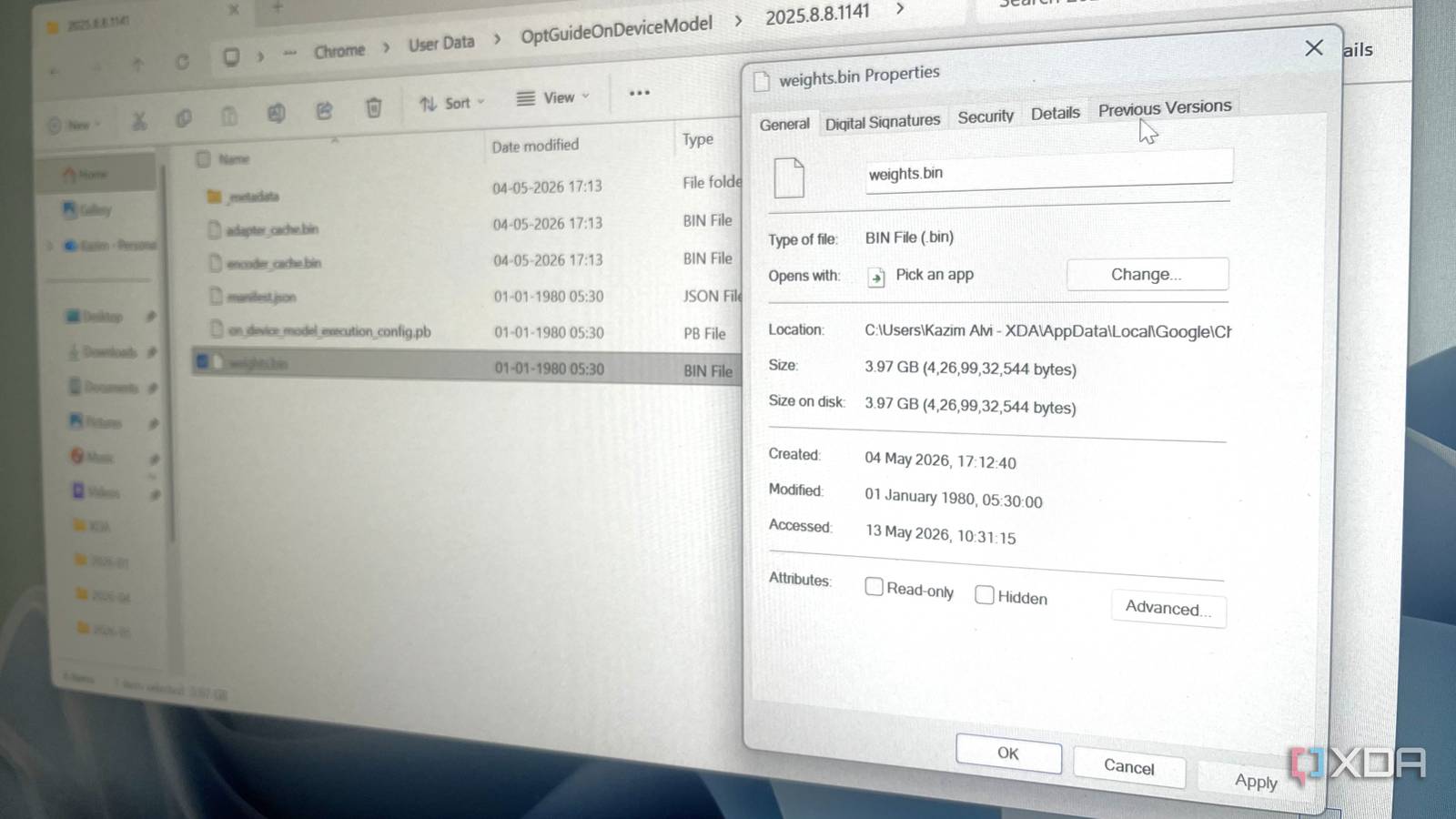
%LOCALAPPDATA%\Google\Chrome\User Data\Default\AI\(or similar path starting with the component name from Step 1). Delete the entire folder (e.g., "Model," "OnDeviceModel"). On macOS: Open Finder, press Command+Shift+G, and go to~/Library/Application Support/Google/Chrome/Default/AI/. Delete the AI folder. Important: If you can't find the exact path, use a system-wide search for filenames like "gemma" or "optimization_hints". - Step 4: Clear Chrome's component update cache. In Chrome, navigate to
chrome://settings/clearBrowserData. Select "Advanced" tab, check "Cached images and files," and set time range to "All time." Click "Clear data." This removes any leftover temporary files related to AI downloads. - Step 5: Verify deletion and reclaim disk space. Reopen Chrome and go back to
chrome://components. The large file sizes should now be missing or reset to 0 bytes. Also, check your system's storage status to confirm the freed space. On Windows, open Settings > System > Storage to see disk usage decrease. On macOS, choose Apple menu > About This Mac > Storage. - Step 6 (Optional): Block future automatic downloads. To prevent Chrome from re-downloading AI files without your consent, you can modify Chrome's policies. Advanced users only: On Windows, use Group Policy Editor (gpedit.msc) and navigate to Computer Configuration > Administrative Templates > Google > Google Chrome. Look for settings like "Enable AI features" and disable them. On macOS, use the Plist file
/Library/Managed Preferences/com.google.Chrome.plistwith a managed configuration profile. Alternatively, switch to a browser like Firefox or Brave that doesn't push AI bloat.
Tips for Success
- Check disk space before and after: Use a tool like WinDirStat (Windows) or Disk Inventory X (macOS) to visualize exactly where your storage went. This helps confirm the AI files are gone.
- Keep Chrome updated — but be cautious: Google may patch this behavior in future versions. However, always review release notes before updating, as new AI features can sneak in.
- Use Incognito mode for sensitive tasks: Some AI features only activate in normal browsing. Incognito mode limits data collection.
- Extend your privacy further: Consider using extensions like uBlock Origin to block unnecessary scripts and reduce Chrome's resource usage.
- Backup your profile: Before deleting folders, back up your Chrome profile (bookmarks, passwords) just in case.
- Remember, you're not alone: Thousands of users reported this issue. Google is aware but has not offered a simple toggle. Your manual steps are currently the only reliable way to regain control.
If you followed these steps, you've successfully removed the unwanted AI files from your Chrome installation. Your system should now have more free space, and Chrome should run a bit snappier without the extra AI baggage. Stay vigilant—and always know what your browser is downloading in the background.
Related Articles
- Advancing Web Semantics: The Promise of the Block Protocol
- 6 Critical Facts About Google’s Prompt API and Chrome’s Gemini Nano
- Simplify Accessible Color Contrast with CSS contrast-color()
- CSS Alone Recreates Apple Vision Pro’s Complex Scrollytelling – A Web Development Breakthrough
- 10 Things You Need to Know About Progressive Web Apps and the Future of Web Design
- Build a Tab Grouper Chrome Extension with Plasmo: A Step-by-Step Guide
- Astro’s MDX Integration Transforms Content Workflows: Developers Gain Unprecedented Flexibility
- Chrome 136 Unveils Explicit Compile Hints: Dramatic JavaScript Startup Speed Boost