Don’t Let Your Browser Undermine Your DNS Changes: What You Need to Know
Many users invest time in switching their DNS servers for better speed, privacy, or security. Yet a common oversight can render all that effort useless: your web browser may be using its own DNS settings, completely bypassing the system-level DNS you configured. Understanding this disconnect is crucial to actually benefiting from your DNS changes. Below, we answer key questions to help you align your browser with your system DNS.
What is DNS and why do people change it?
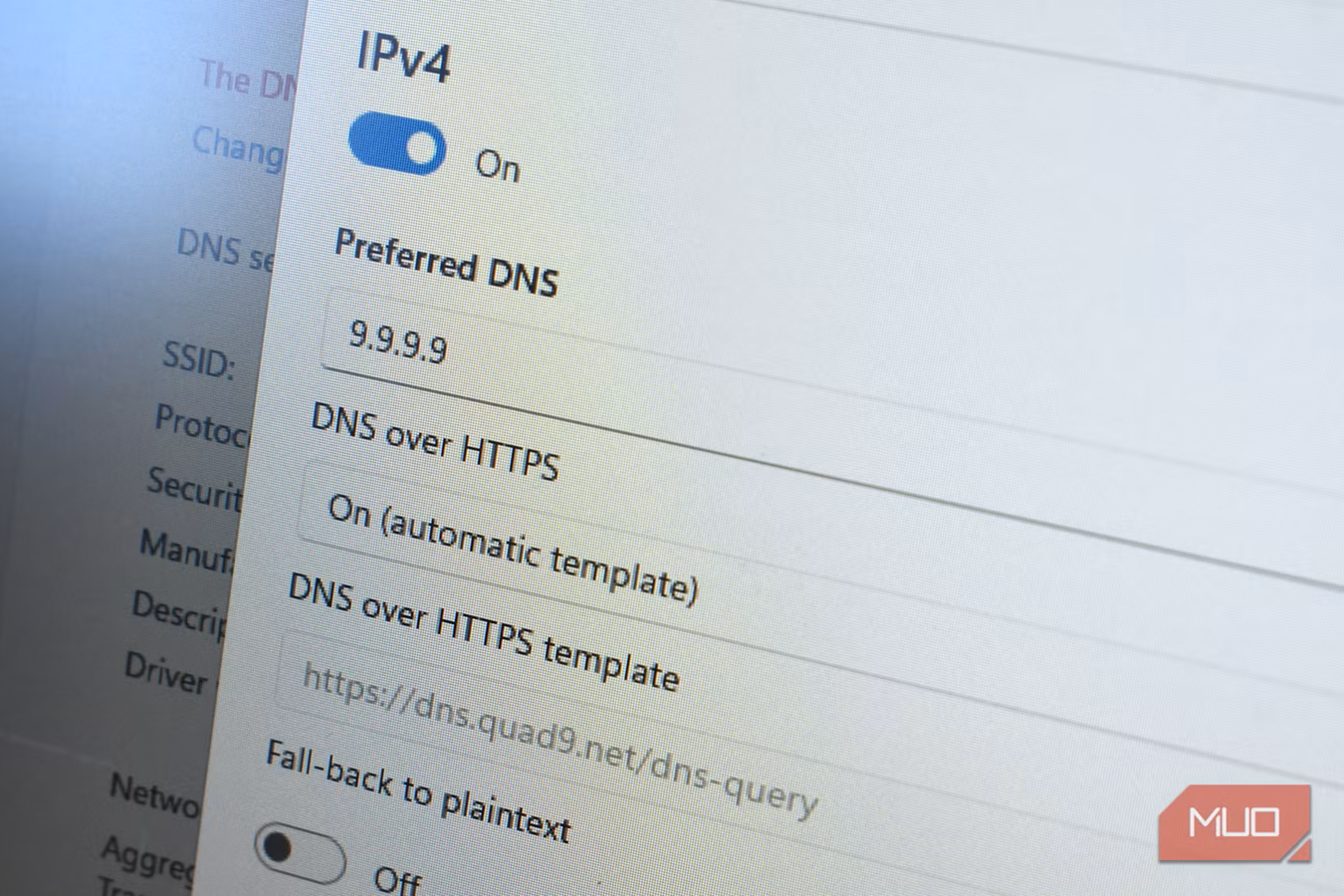
The Domain Name System (DNS) translates human-friendly domain names (like example.com) into IP addresses that computers use to communicate. By default, your internet service provider (ISP) assigns its own DNS servers, which can be slow or may log your browsing activity. Changing your DNS provider to a faster or more privacy-focused option (such as Cloudflare 1.1.1.1 or Quad9) is a common tweak to improve loading times and reduce tracking. However, as we will see, this change only works if every application on your device—especially your web browser—honors that system setting.
Why might switching your system DNS not improve privacy or speed?
Simply updating your network settings to use a different DNS server does not guarantee that all your internet traffic uses that server. Modern browsers, such as Chrome, Edge, Firefox, and Brave, often have built-in DNS-over-HTTPS (DoH) or other secure DNS features that override the operating system’s resolver. If your browser is configured to use its own DNS provider (e.g., Google Public DNS for Chrome), then your system-level DNS change is ignored for all browsing activity. This means you miss out on the promised privacy gains and speed improvements, because the browser still uses its default (often ISP-assigned or another provider) DNS server.
How does a web browser decide which DNS server to use?
When you type a URL in the address bar, the browser first checks its own DNS settings. If the browser is set to use a specific DNS-over-HTTPS service or has its own secure DNS feature enabled, it will send the DNS query directly to that provider, bypassing the system resolver entirely. In Chrome, for example, the setting is found under Privacy and Security → Security → Use secure DNS. Firefox has a similar option in Network Settings. The browser acts as a secondary DNS client, and its configuration takes priority. Unless you explicitly align the browser’s DNS with your system DNS, your system-level changes are effectively neutralized for the primary application you use—the web browser.
How can I check if my browser is using a different DNS?
You can verify your browser’s DNS behavior by visiting a DNS leak test website (such as dnsleaktest.com or ipleak.net). These sites show which DNS servers your browser is actually querying. Run the test with your system DNS configured, then check if the displayed servers match your chosen provider. Alternatively, you can inspect your browser’s internal DNS settings: in Chrome, go to chrome://net-internals/#dns; in Firefox, about:networking#dns. If the servers listed differ from your system DNS, your browser is overriding it. Do not rely solely on system-level tools; the browser’s own network stack may still use a different resolver.
What browser settings override system DNS?
Most major browsers now include a secure DNS feature, often enabled by default or easily turned on. The key settings to check are:
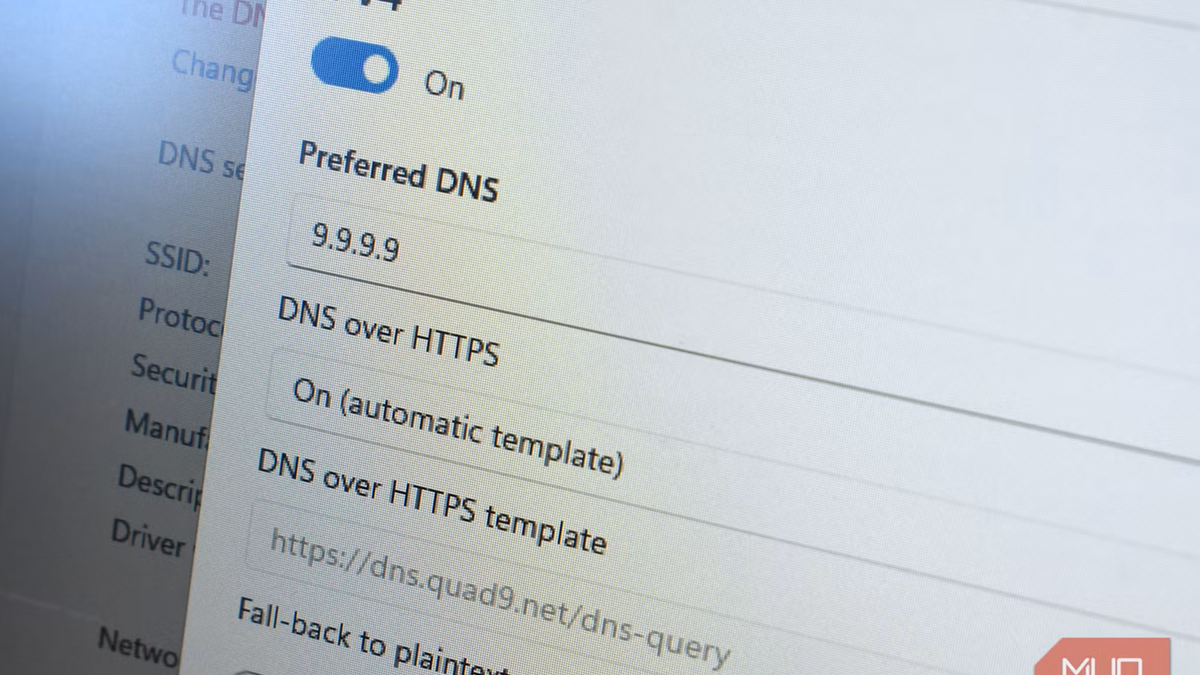
- Google Chrome: Settings → Privacy and security → Security → Use secure DNS. If turned on, it may use the “Current service provider” (often Google) or allow you to choose a custom provider.
- Mozilla Firefox: Settings → General → Network Settings → Enable DNS over HTTPS. It defaults to Cloudflare unless you change it.
- Microsoft Edge: Similar to Chrome, under Privacy, search, and services → Security → Use secure DNS.
- Brave, Opera, Vivaldi (Chromium-based): Follow the same pattern as Chrome.
Additionally, some browsers have built-in “DNS prefetching” or “DNS caching” that can also interfere. Disabling these or aligning the provider ensures consistency.
How do I sync my browser DNS with my system DNS?
To make your browser use the same DNS as your system, follow these steps for each browser you use:
- Open the browser’s security/network settings (as shown in the previous answer).
- Find the secure DNS or DNS-over-HTTPS option.
- Select “Use your current service provider” or manually enter the IP address of your chosen DNS provider (e.g., 1.1.1.1 for Cloudflare).
- Alternatively, you can disable secure DNS entirely in the browser, forcing it to rely on the system resolver. This has trade-offs; disabling DoH reduces privacy when using public Wi-Fi.
After making changes, run a DNS leak test again to confirm the browser now uses your selected DNS servers. Repeat for every installed browser, as each maintains its own DNS setting independent of the others.
What are the risks of browser-specific DNS settings?
If your browser uses a different DNS provider than your system, you lose the benefits of your chosen DNS service—whether that’s speed, privacy, or security. For example, if you switch to a DNS filter that blocks malware domains, your browser may still resolve to malicious sites if it uses a different resolver. Similarly, privacy-focused users who rely on a no‑log DNS provider may have their activity logged by the browser’s default DNS. There is also a risk of inconsistent behavior: some DNS providers have different filtering policies or support DNSSEC differently. To avoid these issues, it is essential to audit your browser’s DNS settings whenever you change your system DNS.
Related Articles
- How to Secure the $229 NordVPN Two-Year Deal with Three Bonus Months
- Musk vs. OpenAI: Lawsuit Pits Profit Against AI Safety Mission
- 10 Insights from the Jack Dorsey and Eugene Jarecki Discussion on Bitcoin, WikiLeaks, and Censorship
- OpenAI Prepares Legal Action Against Apple Over Alleged Breach of Contract
- A Practical Guide to Dismantling Mass Surveillance
- Key Takeaways from Appian World: Agentic AI, Governance, and Process-Centric Approaches
- Signal Privacy: A Comprehensive Guide to Secure Messaging
- Simplifying ISO 27001 Compliance with Pre-Built Sentinel Policies for AWS